Home
Tesla
Features
Ever Wonder How To Correctly Use Tesla's Built-In Dashcam?
Tesla's camera tech has proven its worth, but there are some steps to setting it up correctly.

EVANNEX 
By: EVANNEX
Nov 17, 2019 at 9:14am ET
Add InsideEVs as a preferred source in Google
- (https://twitter.com/intent/tweet?url=https%3A%2F%2Finsideevs.com%2Ffeatures%2F382747%2Fvideos-tesla-dashcam-teslacam-how-to%2F&text=Ever%20Wonder%20How%20To%20Correctly%20Use%20Tesla%27s%20Built-In%20Dashcam%3F&via=InsideEVs)
- copy
Share
Comment
Tesla, a company already known for their disruptive tech, has one underappreciated feature that deserves mention — their built-in dashcam. Using proprietary Autopilot cameras, Tesla owners can store and record live footage at no additional cost.
Check Out These TeslaCam Video Articles:
 TeslaCam Shows It Is Not Speed That Kills: It's Stupidity
- This article comes to us courtesy of EVANNEX (which also makes aftermarket Tesla accessories). Posted by Denis Gurskiy. The opinions expressed in these articles are not necessarily our own at InsideEVs.

Source: Tesla
With this always-running, free-to-use system, Tesla owners have been able to capture some gnarly accidents, prove insurance fraud, and even help identify hit and run suspects. The Silicon Valley automaker has even added a feature dubbed "Sentry Mode" that allows the cameras to continue recording even with the vehicle off. This has led to a string of arrests as vandals and thieves keep getting caught red-handed as Tesla's cameras record their dirty deeds.

Source: Jed Franklin
The system simultaneously records from three different angles for an optimal unobstructed view of its surroundings. The three cameras, front, right repeater, and left repeater, are just three of the eight on-board cameras used to enable Tesla's Autopilot. That's right — the same cameras used to record accident footage will (eventually) enable full self-driving in the future.
For the most part, the Tesla dashcam setup is a 30-second process, but there's a few things you'll need first. A standard USB will work fine as long as it holds a minimum of 1.8 GB of storage. If it's already formatted to Fat32 or (MS-DOS (FAT) for Macs), you're ready to move on to the next step. If not, check out how to re-format down below.
However some people have reported issues with formatting their USBs through this method, but thankfully there is an alternative. You'll just need one of the many free partition managers out there. We have a video below summarizing the process, but we also have a step-by-step guide underneath if that suits you better.

Source: EVBite
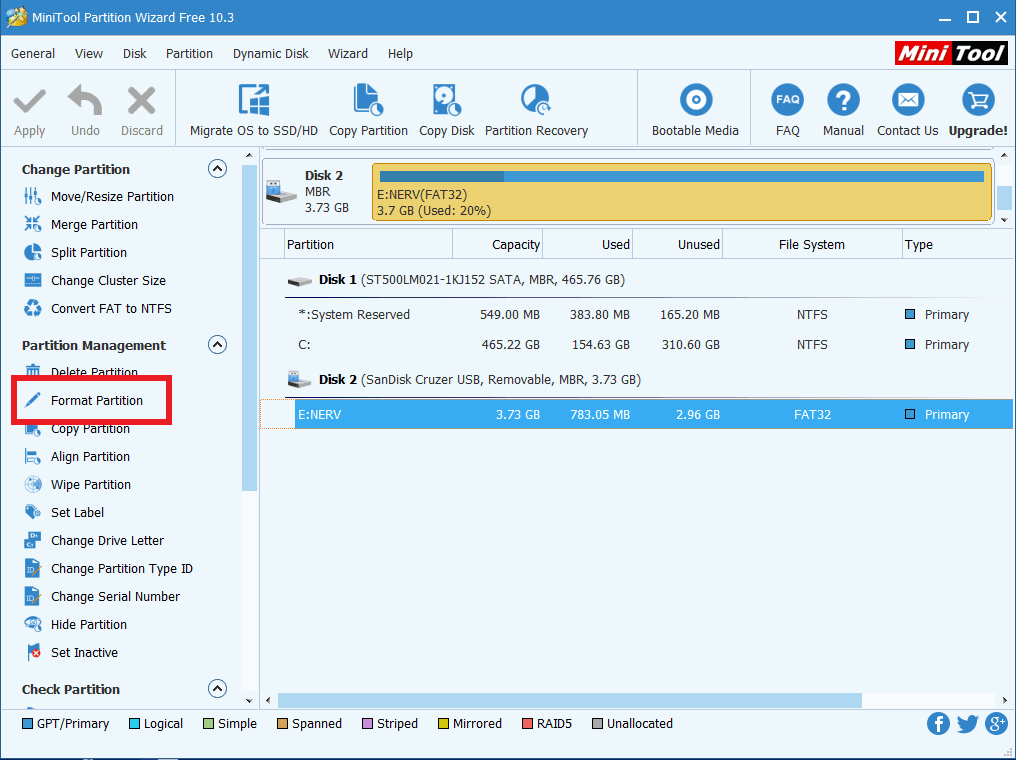
Plug your USB into your computer, open up the software, select your USB from the list drives connected to your computer, and select "format partition" and you're ready to move on to the next step.
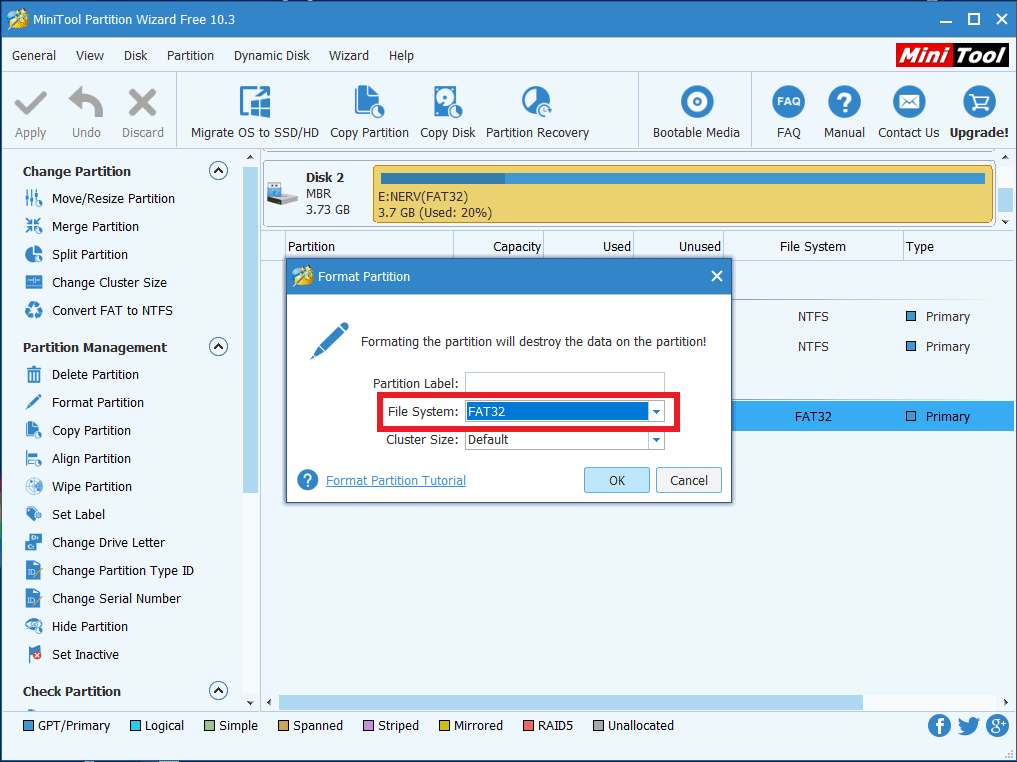
 A pop-up will display allowing you to choose which format you'd like. In order to use the Tesla dashcam, you'll need to select Fat32. Just accept and select "Apply" on the top left and you're ready to go.
 There's no need to toggle anything on or off — as long as you see the red indicator on your vehicle's top right display, the system is running properly. Everything is being recorded and saved as you drive. When your USB runs out of space, the car will automatically delete and overwrite older footage. If you'd like to permanently save a clip, just tap that red indicator. That will capture the previous 10 minutes of driving and separate it into a new folder.
On the likely chance your USB is formatted properly, all you need to do is create a new folder and name it TeslaCam. Simply plug it into your Tesla's USB port and you should see a red recording indicator on your display. That's it, you're ready to go. However, if you see an X, your USB is probably not formatted properly.
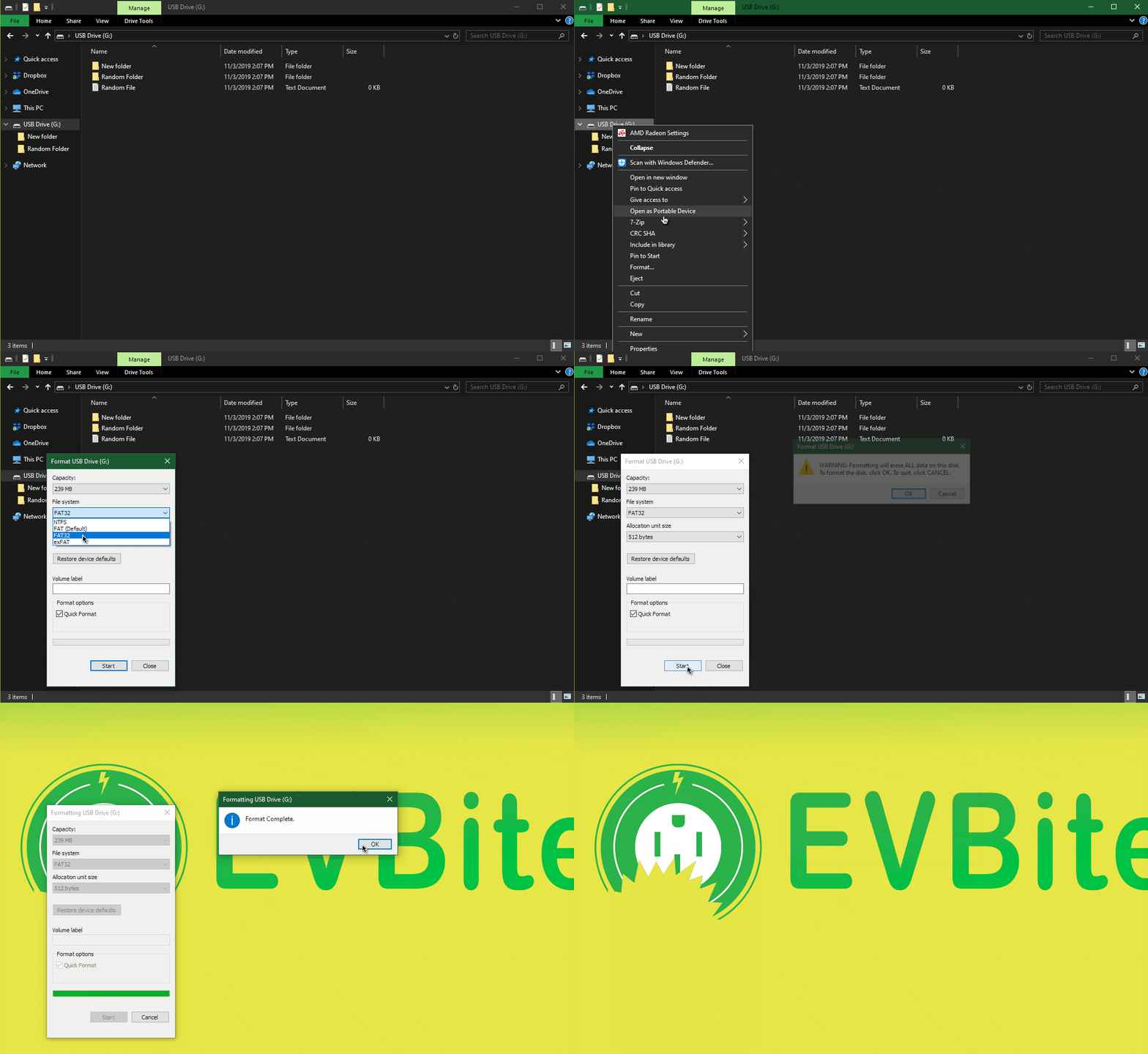 While reformatting might sound complicated, it's not. With just five mouse clicks, it's a two-minute process at most. Most likely you'll be able to format your USB within windows with no problems as illustrated above.
Sentry Mode is a second feature that allows you to use the same cameras and USB to record while your car is off. Due to excess battery drainage that can occur, Sentry Mode does include a toggle switch. To enable, tap the lens icon to the right of the TeslaCam one. Additionally, you can enable the feature from within the app. Once you get back to your car the feature will disable so you'll have to re-enable with each use.
Tesla's Sentry Mode is more than just an active camera system. In addition to the camera, the feature uses the vehicle's sensors to monitor for suspicious activity. If anyone so much as leans on your car, the car's display will flash a "recording" message, notify you via phone, and save the footage. This has been used in the past (see below) in order to identify vandals and possible damage to vehicles.

Source: Teslaffinity
To view the footage, simply disconnect the USB from your car, connect it to a computer, and open one of the video files. They will be organized by date for convenience. Both features record in short one-minute intervals. Even when saved, you'll have ten minutes of footage separated into ten different files for each of the three cameras. This can be a hassle for those without any sort of editing software but there's an easy option.
Using a web-based teslacam viewer you can upload and view all three cameras side-by-side in video format. If you have any issues with it you might need to try it out on Microsoft Edge, Safari, or download this Microsoft extension. This is due to the fact that Tesla uses a video encoding format not yet implemented by other browsers.
What do you think?
View
Comments
===
An earlier version of this article appeared on EVBite. EVBite is an electric vehicle specific news site dedicated to keeping consumers up-to-date on any developments in the ever-expanding EV landscape.
- InsideEVs Editor’s Note: EVANNEX, which also sells aftermarket gear for Teslas, has kindly allowed us to share some of its content with our readers, free of charge. Our thanks go out to EVANNEX. Check out the site here.
Source: Evannex
We want your opinion!
What would you like to see on Insideevs.com?
Take our 3 minute survey.
- The InsideEVs team
Share this Story
- (https://twitter.com/intent/tweet?url=https%3A%2F%2Finsideevs.com%2Ffeatures%2F382747%2Fvideos-tesla-dashcam-teslacam-how-to%2F&text=Ever%20Wonder%20How%20To%20Correctly%20Use%20Tesla%27s%20Built-In%20Dashcam%3F&via=InsideEVs)
- copy
GO TO COMMENTS
(
)
Got a tip for us? Email: tips@insideevs.com
View all comments ( )
Trending
Lucid's $50,000 Tesla Model Y Rival Is Getting Closer To Production. Here's The Latest
Tesla Is Squeezing More Money Out Of The Cybertruck Before It Dies
This BMW i3 Drove 3,658 Miles. It Needed Less Than 3 Hours Of Charging
Rivian's New Robots Will Initially Handle 20% Of Factory Tasks. The Goal Is 80%, CEO Says
latest articles
- Tesla’s Cheapest Cybertruck Ever Is An RC Racer That Goes 37 MPH Nov 12 - News -
- Google’s Gemini AI Assistant Now Works On Apple CarPlay Nov 12 - Software -
- Tesla Extends Cybertruck Production Run To Work Through Order Backlog Nov 11 - News -
- The AI Boom Is Making Ordinary Car Parts Harder To Get, Rivian Says Nov 11 - News -
- The Best Hybrid SUVs To Buy In 2026 Nov 11 - Buying Advice -
- This BMW i3 Drove 3,658 Miles. It Needed Less Than 3 Hours Of Charging Nov 11 - Range / Efficiency -
- Tesla Is Squeezing More Money Out Of The Cybertruck Before It Dies Nov 11 - News -
RECOMMENDED FOR YOU
Tesla’s Cheapest Cybertruck Ever Is An RC Racer That Goes 37 MPH
Google’s Gemini AI Assistant Now Works On Apple CarPlay
Tesla Extends Cybertruck Production Run To Work Through Order Backlog
The AI Boom Is Making Ordinary Car Parts Harder To Get, Rivian Says
Tesla Is Squeezing More Money Out Of The Cybertruck Before It Dies
The Best Hybrid SUVs To Buy In 2026
The Best EV Lease And Finance Deals In November 2026