
'I'll Hold Down On the Model 3 Until It Does...': Tesla Driver Discovers Little-Known Touchscreen Feature. Here's How To Find It
'Ngl this past week I’ve just been getting sold on switching over to a Tesla lmao.'
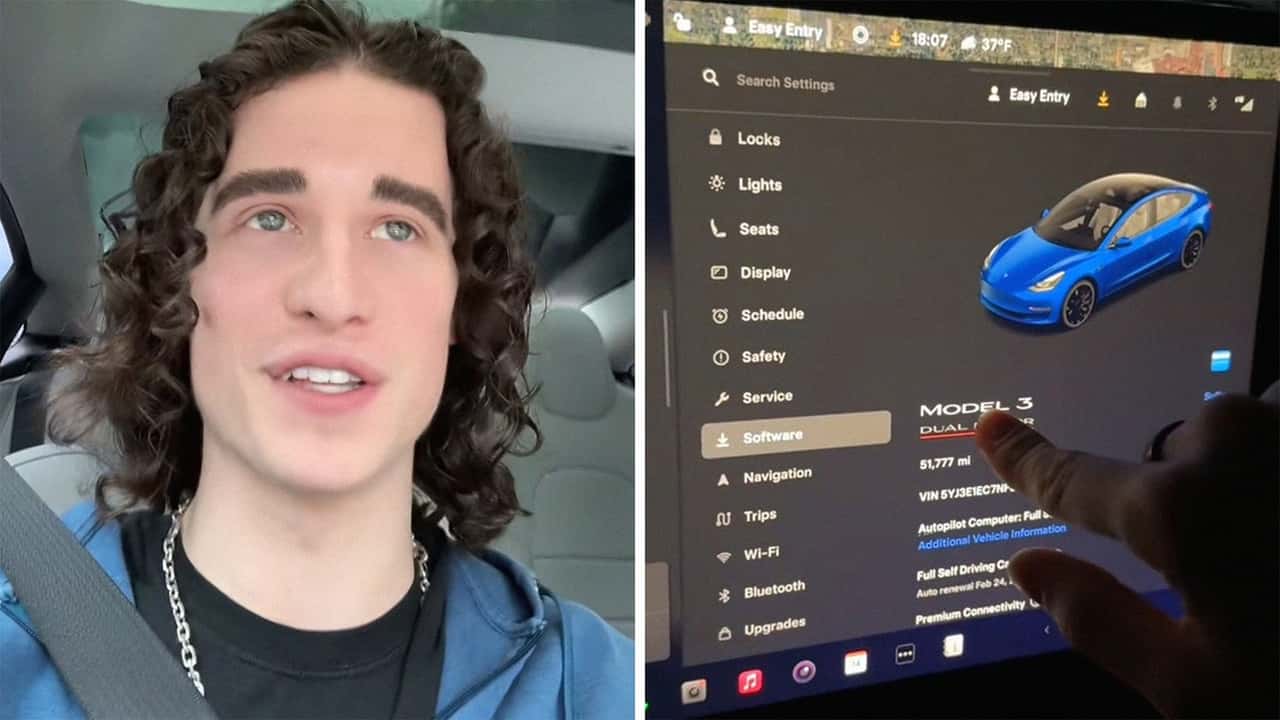

Most Tesla owners use the center screen to control climate, navigation, and Spotify. But tucked beneath the glossy UI is a secret menu that unlocks a level of detail even many technicians don’t see. One TikTok user just showed exactly how to access it—and what it reveals is next-level.
In a viral clip that’s been viewed more than 250,000 times, automotive-minded creator Ethan Steury unlocks a Tesla’s Service Mode function on its control panel, giving viewers and Tesla owners a close-up look at the performance details of their vehicles.
In the video, Steury walks viewers through the steps to unlock Tesla’s hidden Service Mode. It starts in the “Software” menu, where he presses and holds the Model 3 icon until a small loading circle appears. He then types the word “Service” into the prompt that follows. A warning message pops up, but with a tap of the Enter key, the hidden interface opens.
From there, Steury dives into the “Thermal” tab, showing off real-time readings from the car’s refrigerant system and the octa-valve heat pump component located under the frunk that manages cabin and battery thermal control. After turning the air conditioning on, the interface tracks airflow, HVAC system performance, and coolant behavior in live detail.
He then navigates to the “Infotainment” section and selects “Connectivity,” where the display reveals antenna signal strengths and network connections across the vehicle’s communication systems. To exit Service Mode, he simply performs the same long press on the Model 3 icon, bringing the system back to its normal display.
More Than a Gimmick
Service Mode is a built-in feature available on all Tesla vehicles, designed primarily for technician use but accessible to any owner who knows the steps. Tesla’s own service documentation confirms its intended role in vehicle diagnostics, though it’s rarely showcased outside of shop settings.
The walkthrough offers a glimpse into Tesla’s software-first design philosophy where nearly every layer of the vehicle is tied to a centralized, user-facing interface. Unlike most traditional automakers that wall off diagnostic tools behind dealership systems and proprietary scanners, Tesla puts a surprising amount of power directly in the hands of the driver.
FROM THE TRENDING NEWS DESK
Viral bits from across the social media landscape
Our team of experts tracks what's trending so you don't have to—from viral videos to online debates that have everyone talking.
This is part of what makes the Tesla experience so distinct: The same screen you use to turn on heated seats can also let you monitor the position of the refrigerant valve under the hood.
Is It Safe to Use Service Mode?
For Tesla owners interested in Service Mode, the good news is that accessing and viewing diagnostic data is generally safe. In most areas, the interface is read-only, meaning users can observe real-time information about the vehicle’s internal systems, such as HVAC performance, thermal activity, and signal strength, without the ability to make changes that could affect performance or safety.
Now Trending
That said, Tesla does not officially recommend that non-technicians use Service Mode, and accessing it does trigger a warning prompt. According to Tesla’s own Service Mode Overview, the feature is intended for use by trained personnel and exists primarily to support diagnostics and repairs within the company’s service network. It allows authorized users to perform vehicle checks, run system tests, and analyze fault data. However, most of these actions require elevated technician permissions, which are not available to the average owner.
Tesla Easter Eggs & Hidden Features Worth Exploring
Tesla vehicles are equipped with hidden tools, playful extras, and advanced settings that many owners are unaware of. The features offer utility, personality, and insight into Tesla’s software-first approach. Here are a few of the most interesting.
Light Show Mode
Found in the “Toybox” menu, this feature choreographs a synchronized performance using your Tesla’s headlights, windows, and (on applicable models) falcon wing doors. It’s a crowd-pleasing light show that runs to music, and it works even if you’re parked in the driveway.
Boombox Mode
If your Tesla is equipped with the external pedestrian warning speaker (standard on most 2021 and later models), Boombox Mode lets you project custom sounds from the vehicle, including everything from goats to ice cream truck jingles. It can also be used to replace the car’s horn or driving sounds at low speeds.
Caraoke
Tesla’s onboard karaoke system comes preloaded with lyrics and backing tracks, and can be accessed through the “Entertainment” menu. It’s fully functional while parked, perfect for singing along at Supercharger stations or entertaining passengers.
Camp Mode
Available from the climate control screen, Camp Mode maintains a stable cabin temperature, disables screen dimming, and allows continuous use of USB ports and media for overnight stays. It’s designed for road trippers and vanlifers who use their Tesla as a temporary shelter.
Sketchpad
Also tucked inside the Toybox, Sketchpad turns the infotainment screen into a blank canvas. Use your finger to doodle, take notes, or leave a creative message behind for your next drive.
Dyno Mode / Traction Control Override
Similar to Service Mode, Tesla includes a hidden Dyno Mode that disables traction and stability control. It’s intended strictly for controlled testing environments. Access typically requires a sequence of steps, such as tapping the Tesla “T” icon and entering a specific passcode. It’s undocumented and unsupported for daily driving and could impact safety or warranty coverage if misused.
Inside EVs reached out to Steury via direct message and email.

RECOMMENDED FOR YOU

Woman Buys Cadillac EV. Then They Offer Her A Deal On EVgo
Sodium Batteries And EVs That Power The Grid: Inside GM's Big Energy Push
"The Motor Is Supposed To Last 1 Million Miles": Man Hits 360,000 Miles On His Model 3. Is That The Norm?
EVs Are Cleaner Than Gas Cars. Your ZIP Code Decides By How Much
"Dealerships Are Shady": Man Says Texas Toyota Dealership Agreed To Sell Highlander Hybrid For $26,900, Then Jacked Up The Price
The Rivian R2 Is Finally Here. The CEO Just Shared When To Expect More Models
Can Waze Still Track The Police?