
'Yolo': Woman Programs a Custom, Bee Gees-Inspired Apple CarPlay Startup Sound. That’s Just the Start
'Good morning you fabulous [expletive]'
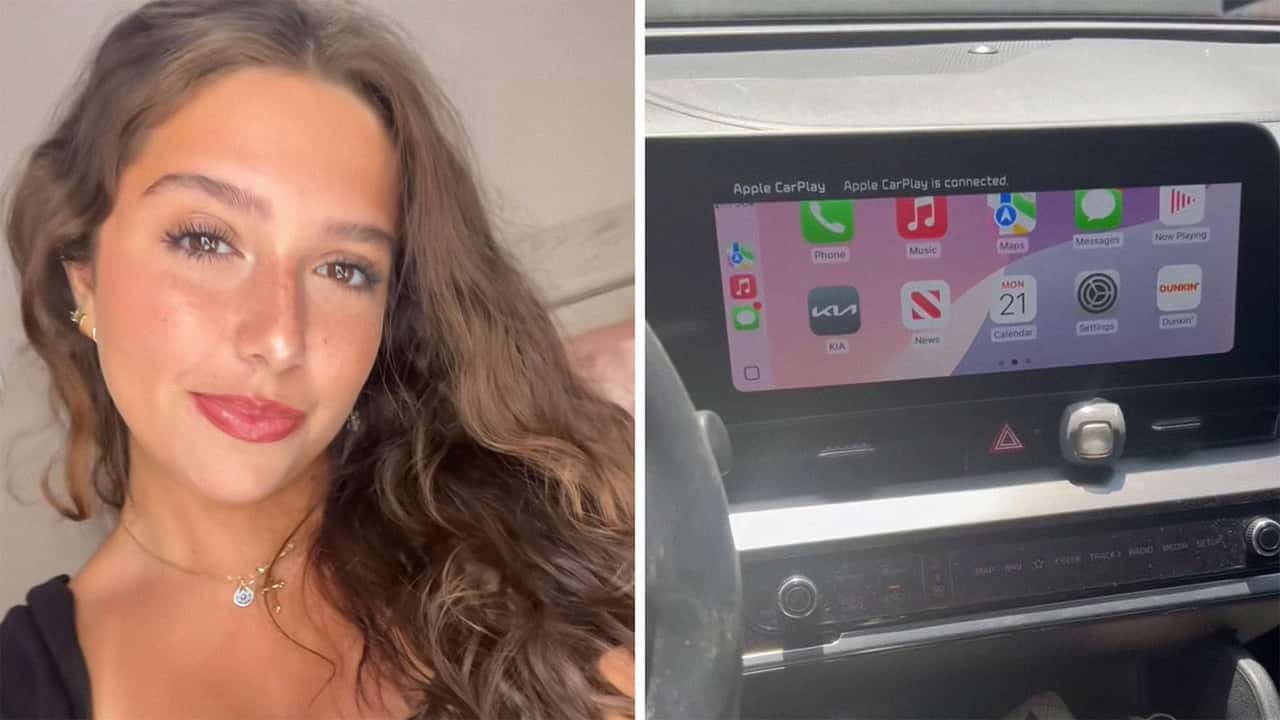

There's been a number of drivers who’ve showed off their personally programmed Apple CarPlay startup sounds. Like this one woman who took a sound bite from Disney’s Big Thunder Mountain Railroad’s attraction, where an old-timey prospector voice tells folks what’s in store for them once the ride begins.
And there’s no shortage of others who have done the same. Like this Fiat owner who recorded herself booting up her vehicle while her CarPlay connection interacts with the vehicle’s infotainment system. Once it does, the tune of the Bee Gees’ “Stayin’ Alive” reverberates throughout the car’s cabin. Over the iconic musical arrangement, a voice can be heard saying, “Good morning you fabulous [expletive]. How does it feel to wake up being the most bad [expletive] [expletive] alive? You may think your anxiety levels might be at 100. But so the [expletive] are you. Go show the world why you’re such a [expletive] and make the day your [expletive].”
It's become an unmistakable part of CarTok on social media.
More CarPlay Custom Sounds
There was a Mercedes AMG driver who recorded themselves booting up their own vehicle with a custom CarPlay boot-up track, too. This time Rick Ross' "Aston Martin Music."
A Kia user’s demonstration of their own custom CarPlay sound was a bit more to the point. Echoing the Big Thunder Mountain Railroad fan’s vibe, a woman’s voice sounds off. She says, “Put y’all seatbelts on. Yolo.” Then, the noise of a car crashing follows the announcement, followed by a high-pitched shrieking. Which, presumably, serves as a reminder for the CarPlay user as to the repercussions folks can suffer if they don’t obey the rules of the road.
How To Program a Custom Apple CarPlay Sound
There are several online tutorials that delineate how folks can go about this practice. The Big Thunder Mountain Railroad enthusiast shared how she did so here. Other online tutorials echo the same steps but just remember that you’ll first need to have a CarPlay compatible iOS device along with the file you’ll want to use. Typically, iPhone users who’ve successfully done this trick instruct drivers to use mp3s, but there have been instances where others have shown off M4A files working too.
Here’s how to get it done:
1 - Tap Shortcuts
This is a standardized application that is pre-packaged on iPhones. If you uninstalled it for any reason, then go to your device’s App Store and download it.
2- Automation
Once you’re in Shortcuts, you’re going to want to hit “Automation” which is located near the bottom of the menu. Following this, select “Create Personal Automation” and then head down through the different choices until you find “CarPlay” to begin your new CarPlay automation. Similarly, you can just search for “CarPlay” in the search bar, too.
FROM THE TRENDING NEWS DESK
Viral bits from across the social media landscape
Our team of experts tracks what's trending so you don't have to—from viral videos to online debates that have everyone talking.
3 - Connect and Run Immediately
After your CarPlay automation has been selected, you need to inform the automated task to “Run Immediately” right when CarPlay “Connects.” Thankfully, these two options are instantly visible upon selecting a new CarPlay automation. So all you need to do is ensure these options are toggled on. Then you’re going to hit “Next.”
4 - Action
After hitting next, you’re going to select “New Blank Automation” which will present a series of searchable actions. You can program your CarPlay to do a variety of things once you enter the car, like send a text message or open a specific application. For the purposes of this tutorial, however, we want CarPlay to pick a specific sound. So locate the file that you saved to your phone.
This can be a snippet of a sound you downloaded from Spotify or YouTube, or one you already have saved in your phone. Many users typically utilize a YouTube mp3 converter service to get this done, as the Big Mountain Thunder Railroad user demonstrated.
The sound should be located in your files folder, so in the “Actions” menu search or scroll down until you locate the “Files” application. Tap that once, which will highlight it, and then tap it again to select your sound.
5 - Pick Custom Sound From Files
Once in your Files browser, locate the custom sound you want played and select it. Recent downloads should be located closer to the top, so hopefully you won’t have to scroll for too long to find it.
6 - Select “Play Sound” Action
Following this, you’ll be prompted to pick a specific action for the file you picked. You can either scroll through the available options presented to you, or you can search for “Play Sound” in the search bar. Once you’ve located the “Play Sound” choice, tap it.
7 - Hit Done
Once all of that has been set up, all you need to do is tap the “Done” option located on the upper right hand corner of your phone’s screen. Do that and you’re good to go.
Which custom sound are you going with? If you’re struggling to think of something, why not consider Ric Flair’s theme?

RECOMMENDED FOR YOU

What Is Tesla Nausea? How Can You Prevent It?
EVgo Will Install Tesla Superchargers At Its Charging Stations
Zoox's Autonomous Pod Without A Steering Wheel Wants Your Money Now
Some Owners Say Tesla's New FSD Update Is Causing Their Cars' Computers To Overheat
Here’s What Autobahn Speeds Do To EV Range
The Porsche Cayenne Turbo EV's Performance Makes No Sense for a 6,000-LB SUV
After Years Of Delays, Aptera Is Finally Preparing To Build Customer Cars